Copy & Paste
Paste images, text, or tweets from your clipboard with CMD+V. Copy finished graphics to clipboard with CMD+C.

How It Works
Learn how to create beautiful screenshots with BrandBird.

01
Upload any kind of image, even a boring screenshot.

02
Customize your graphics with easy-to-use presets.

03
Export & Share your beautiful screenshots.

Customize In 2 Clicks!
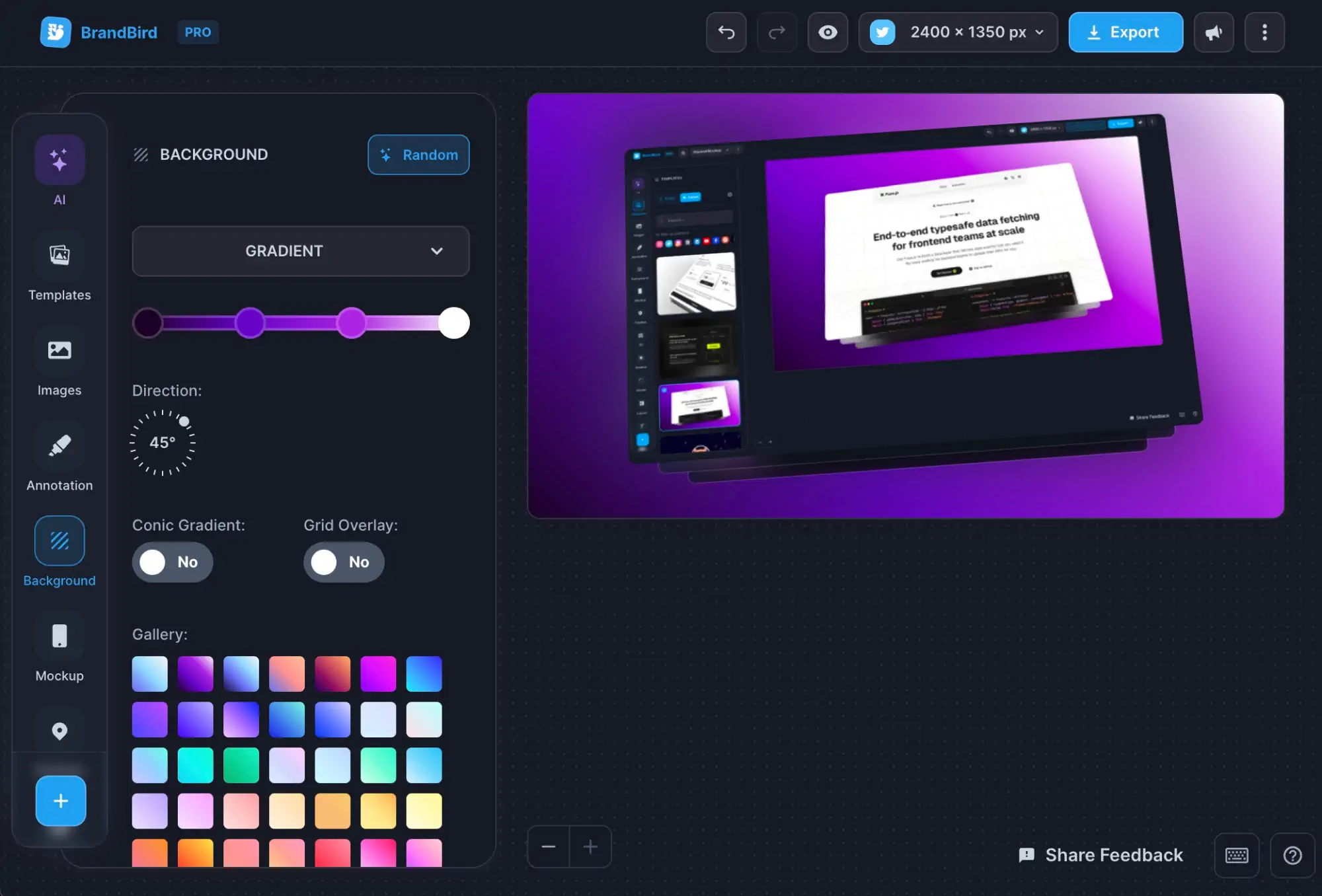
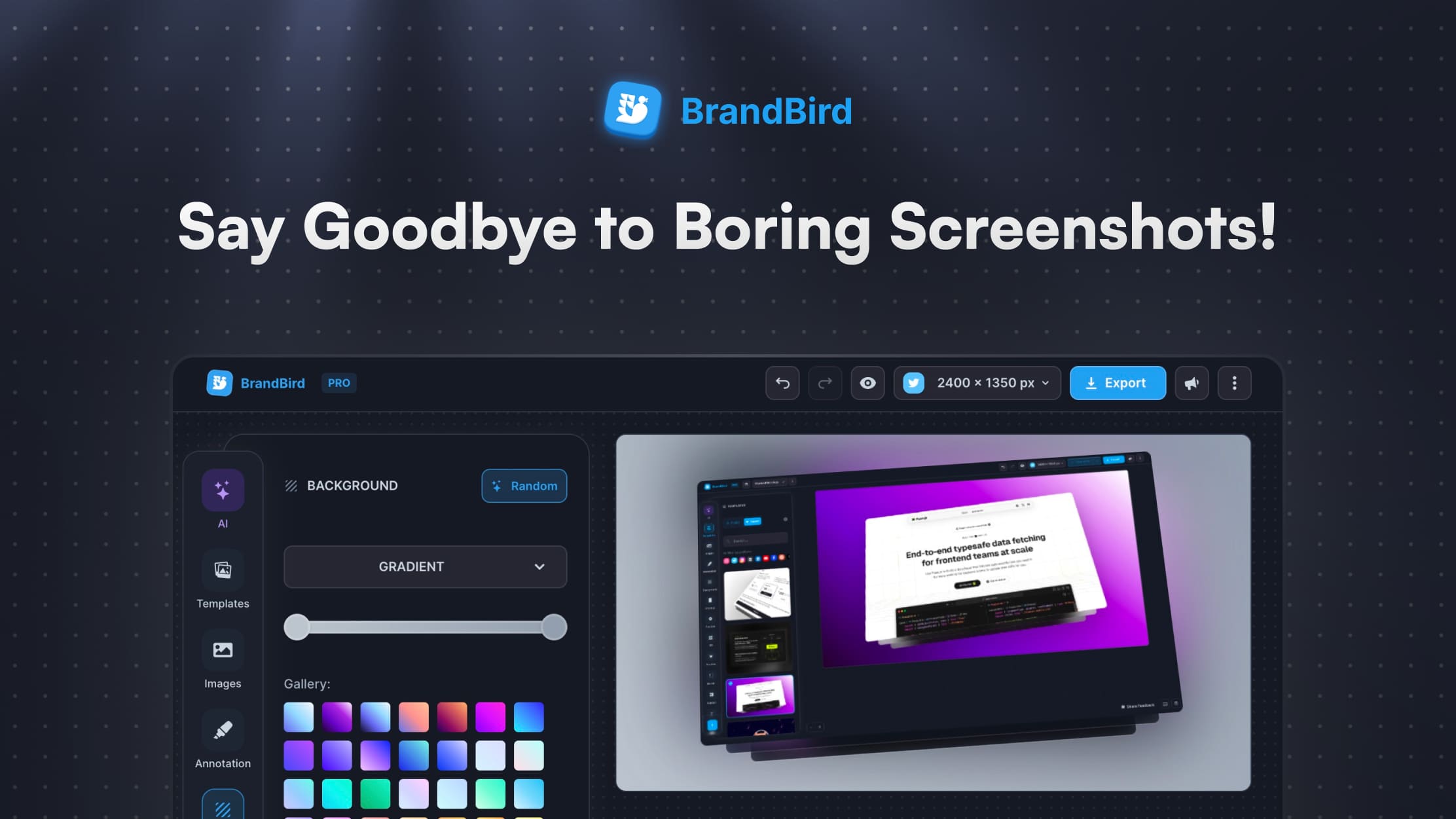
Apply backgrounds, 3D effect, mockups, and many more, with a single click.
GIVE IT A TRY...

Upgrade your Twitter branding!
Instantly brand your screenshots to make your content recognizable & increase your engagement.
Custom Background
Use solid color, gradients, patterns, or images.
Tilt Your Image
Wow your audience with 3D effects.
BrandBird
@brandbirdapp · 2h
Brandbird.app will become your favorite design tool for Twitter graphics!
500
1k
4k
Frequently Asked Questions
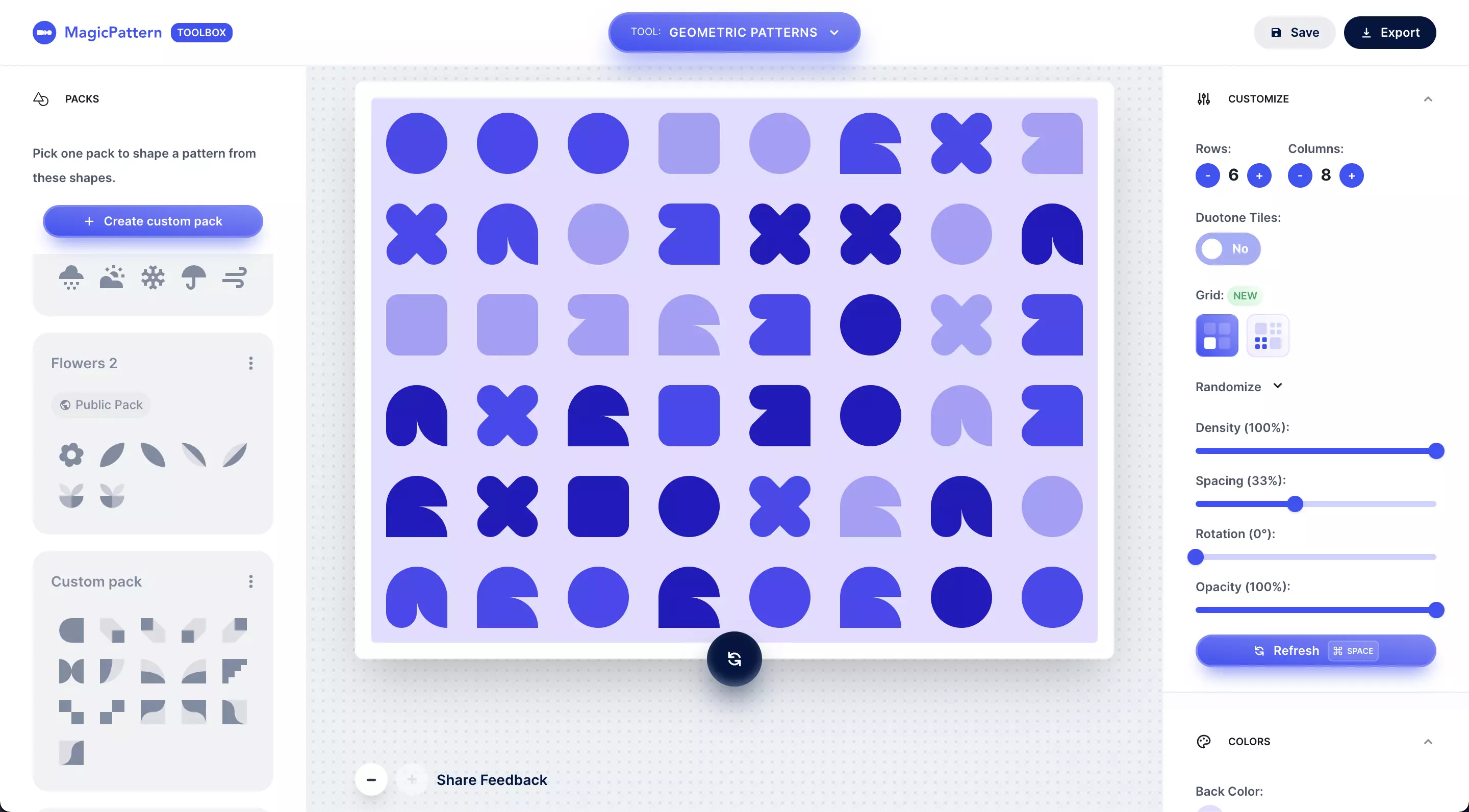
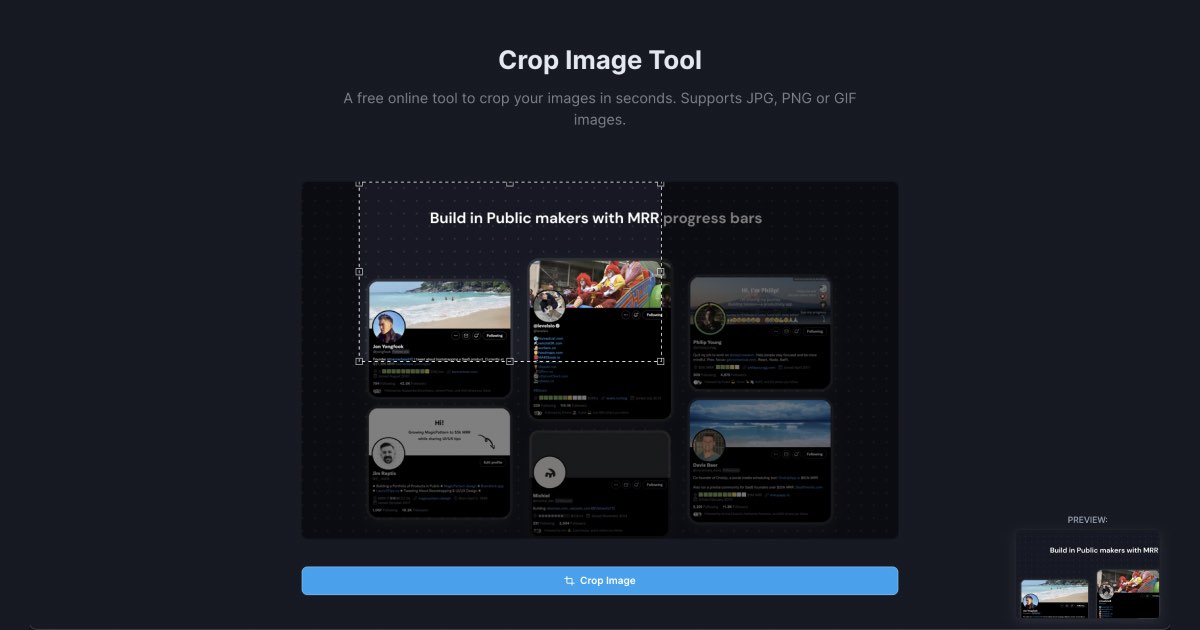
Free Tools for Copy & Paste
I don't know when it happened but Brandbird is now my all-in-one SaaS & social media design tool.
Wilson
Founder Senja.io