BrandBird MCP Server
Connect Claude, Cursor, VS Code, Codex or any MCP client to BrandBird. Turn your templates, copy and screenshots into social posts, blog graphics and launch images, right where you work.
Available on Pro & Team plans
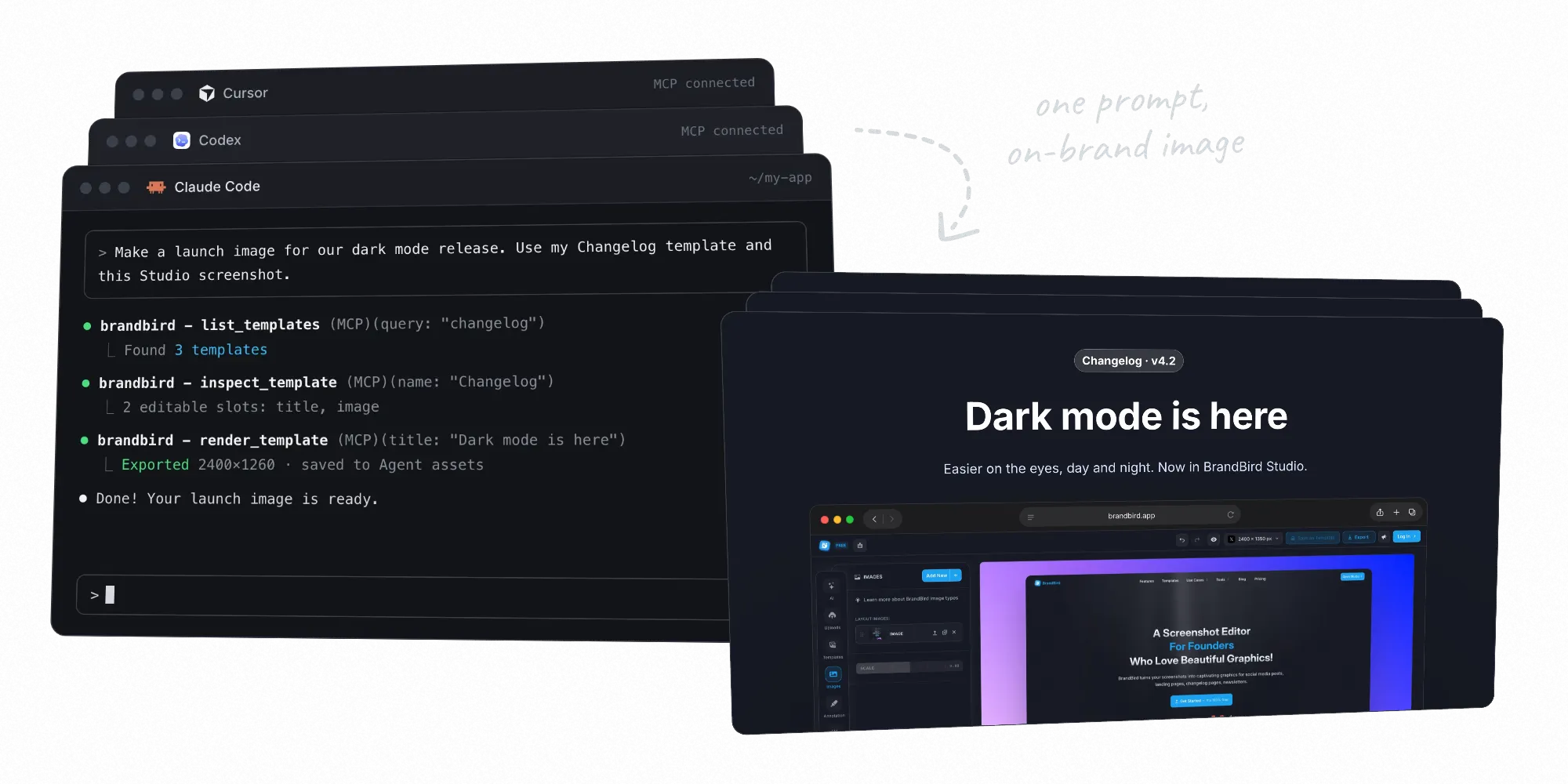
Works with your favorite agents
Ship release graphics with your code
Turn a feature screenshot and release notes into a branded changelog image, without leaving your coding agent.
Give every post an on-brand visual
Create blog cover images and social posts with your saved templates, brand colors, fonts and logo.
Adapt one design for every channel
Resize a launch graphic for LinkedIn, X and Instagram, or translate its copy for your next market. Preview before exporting.
Turn your data into a content series
Fill a template from CSV or JSON rows to create testimonial cards, product announcements or a series of tips. Exports stay in your Brand Assets.

Set up in under a minute.
Choose your agent and add BrandBird
Add the connection below to your client. BrandBird uses Streamable HTTP and OAuth: no API key or client secret is needed for these sign-in connections.
In Claude, open Settings → Connectors → Add custom connector, paste this URL and click Connect. Sign in to BrandBird and click Allow. No API key needed.
https://mcp.brandbird.appSign in and approve access
Connect or authenticate BrandBird in your client. In the browser window, sign in to your BrandBird account, review the requested access and click Allow. Return to your agent to finish connecting.
You can revoke access at any time in Connected apps. For scripts or clients without OAuth, use your API key as an Authorization: Bearer header instead.
Ask your agent
Restart or reload your client so it picks up the server, then ask for a visual in plain language. The agent finds the right template, fills it in and returns the image link.
What you can ask your agent
Each card is a real job your agent can do with BrandBird. Copy the full prompt, then swap in your own template names, copy and screenshots.
Announce a feature
Turn a feature name and a screenshot into a branded launch graphic.
Uses render_template
Design a blog cover
Turn a post title, author and screenshot into an on-brand 1200×630 cover.
Uses get_brand_kit & edit_draft
Resize for every channel
Reflow an existing BrandBird template for LinkedIn, an Instagram post and a story.
Uses edit_draft & export_draft
Localize an announcement
Translate a template's copy and keep product names, URLs and layout intact.
Uses inspect_template & render_batch
Create a testimonial series
Map CSV rows to template slots and export one card per customer quote.
Uses render_batch
Annotate a screenshot
Add mockups to a screenshot, add a headline and a hand-drawn arrow, and save it as a template.
Uses list_mockups & save_draft
Available tools
20 tools for everyday design work, discovered automatically when you connect.
Templates & rendering
list_templatesFind your personal templates by name or platform.
inspect_templateShow the editable text and image slots.
render_templatePreview or export a template with new text and images.
render_batchRender up to two variations per call.
Brand & assets
get_brand_kitRead your brand colors, fonts and logos.
prepare_asset_uploadPrepare a local image upload with a signed URL.
finalize_asset_uploadValidate an uploaded image and save it to your assets.
list_assetsBrowse your saved exports, newest first.
Design resources
get_layer_catalogLearn the layer types and edit operations.
search_iconsFind icons, hand-drawn arrows and doodles.
list_backgroundsBackgrounds, grain, grids and shadow overlays.
get_workflowRead step-by-step workflows like recreate_design.
list_mockupsList the device and browser mockups.
Editable drafts
create_draftStart a draft from a template or blank canvas.
list_draftsFind active drafts and resume earlier work.
inspect_draftInspect canvas settings, layers, text and geometry.
edit_draftApply up to 40 edits at once, with an optional preview.
preview_draftPreview a design, check layout warnings or zoom into a region.
export_draftExport a full-quality image to your assets.
save_draftSave the draft as a template.
Advanced tools
For low-level integrations, connect to https://mcp.brandbird.app/?toolset=full to include these four additional tools. The default connection above already includes the complete draft workflow.
create_templateCreate a template from raw Studio state.
delete_draftPermanently delete a draft.
get_assetRetrieve one saved asset by ID.
get_render_jobCheck a render job's status and resulting asset.
Frequently Asked Questions
I don't know when it happened but Brandbird is now my all-in-one SaaS & social media design tool.
Founder Senja.io