Annotation & Highlight

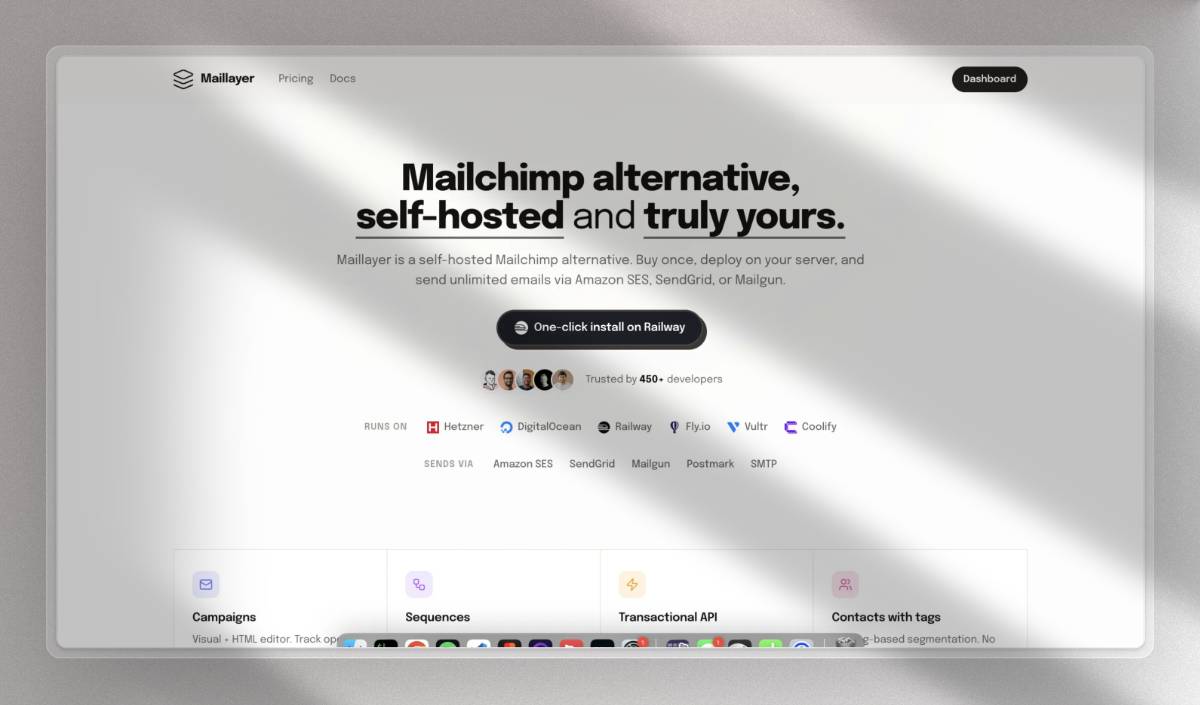
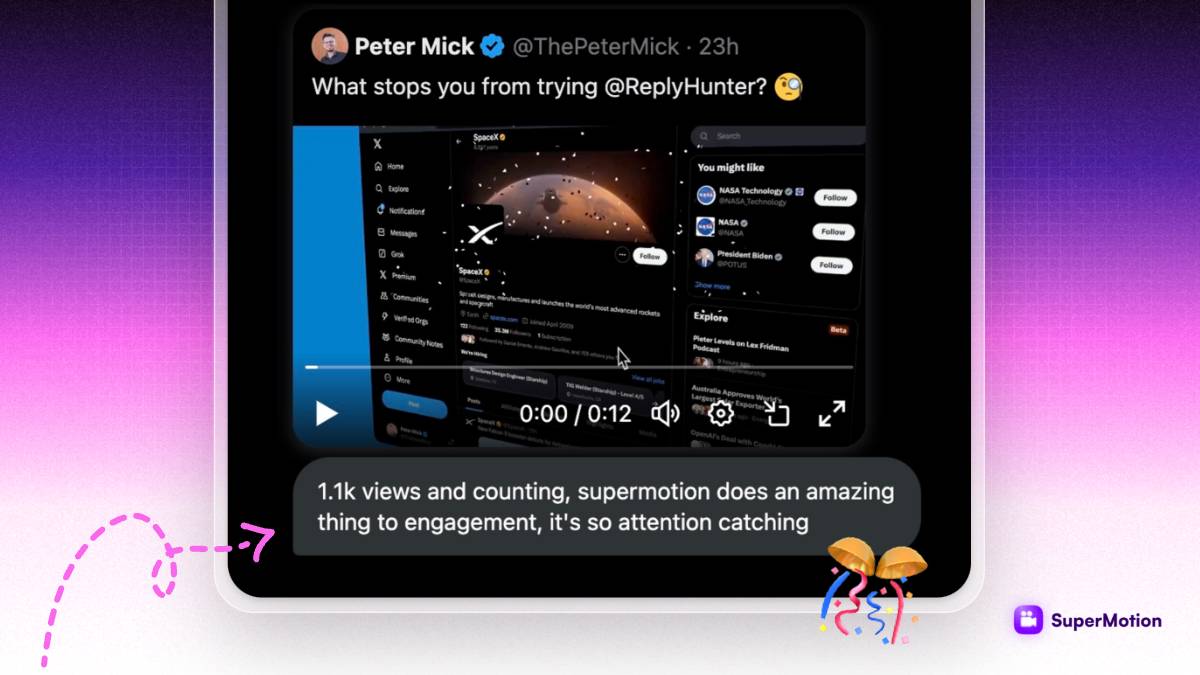
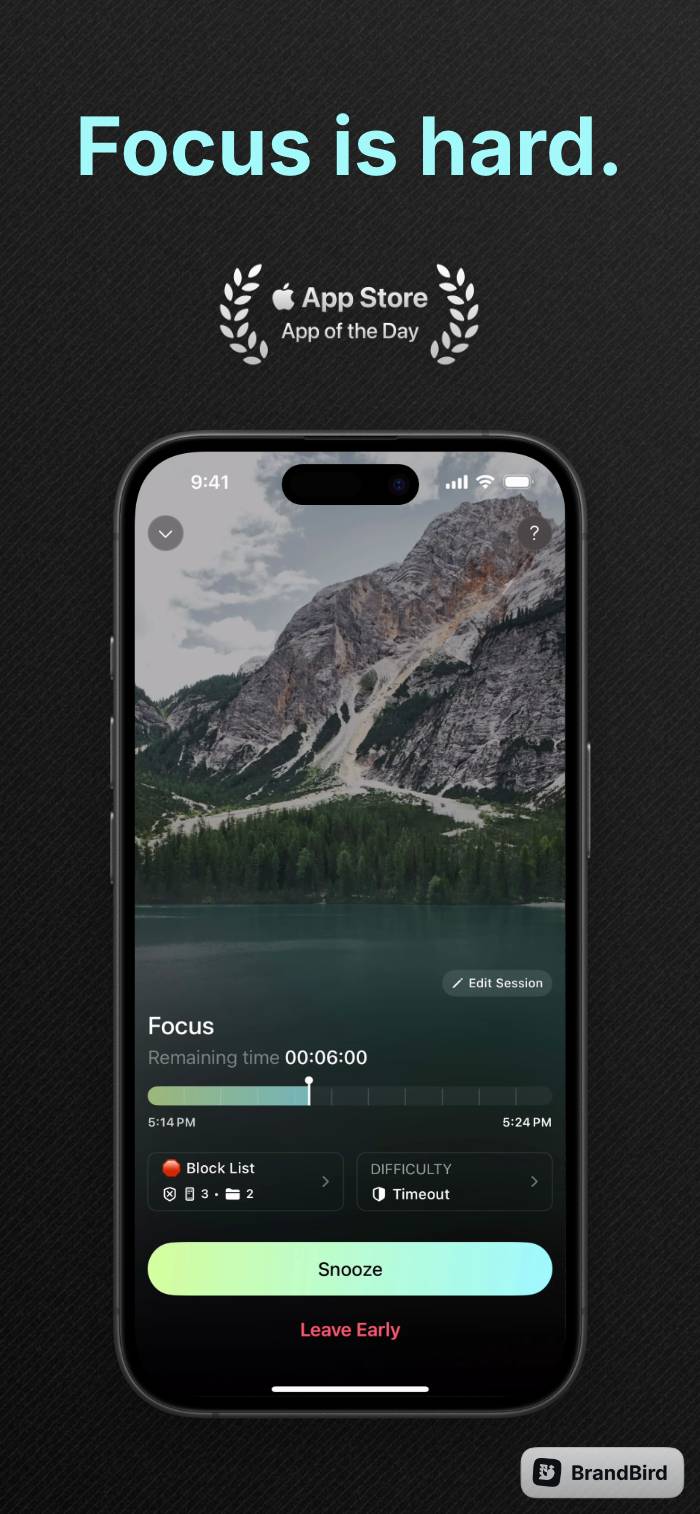
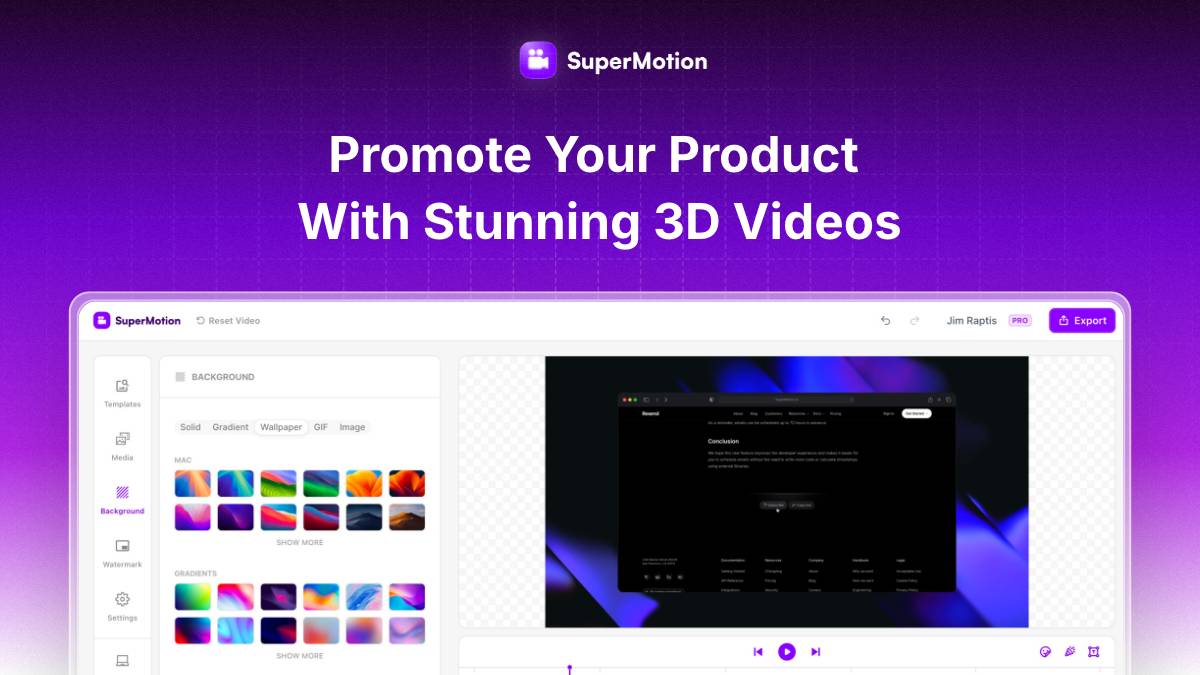
Create beautiful sharable graphics for blog posts or support tickets, to highlight important points and make your content more engaging.
Why marketeers love BrandBird

1

Make it ✨pop✨

Beautiful annotation graphics enhance the visual appeal of a document or presentation, making it more engaging and eye-catching for the viewer.

Design your 1st image
2

Clarify complex information

Annotation graphics clarify complex information and make it easier for the viewer to understand.

Design your 1st image
3

Highlight important areas

Beautiful annotation graphics highlight important points or key takeaways in a document, or SaaS product features, making them stand out and easier to remember.

Design your 1st image
4

Be more professional

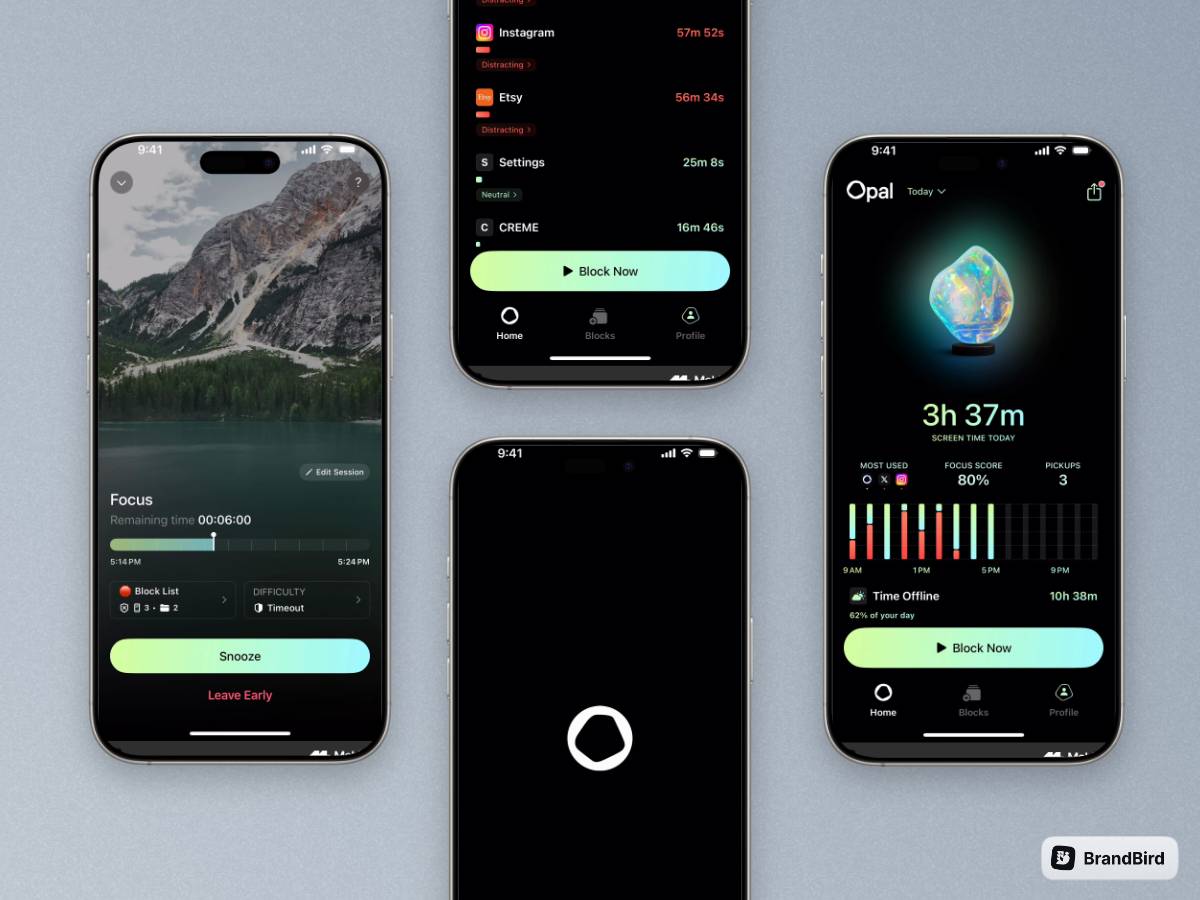
Annotation graphics add a professional touch to a document or presentation, giving it a polished and refined look.

Design your 1st image

Turn your screenshots into beautiful posts

Ready-to-use templates

Frequently Asked Questions

What are annotation and highlight graphics?

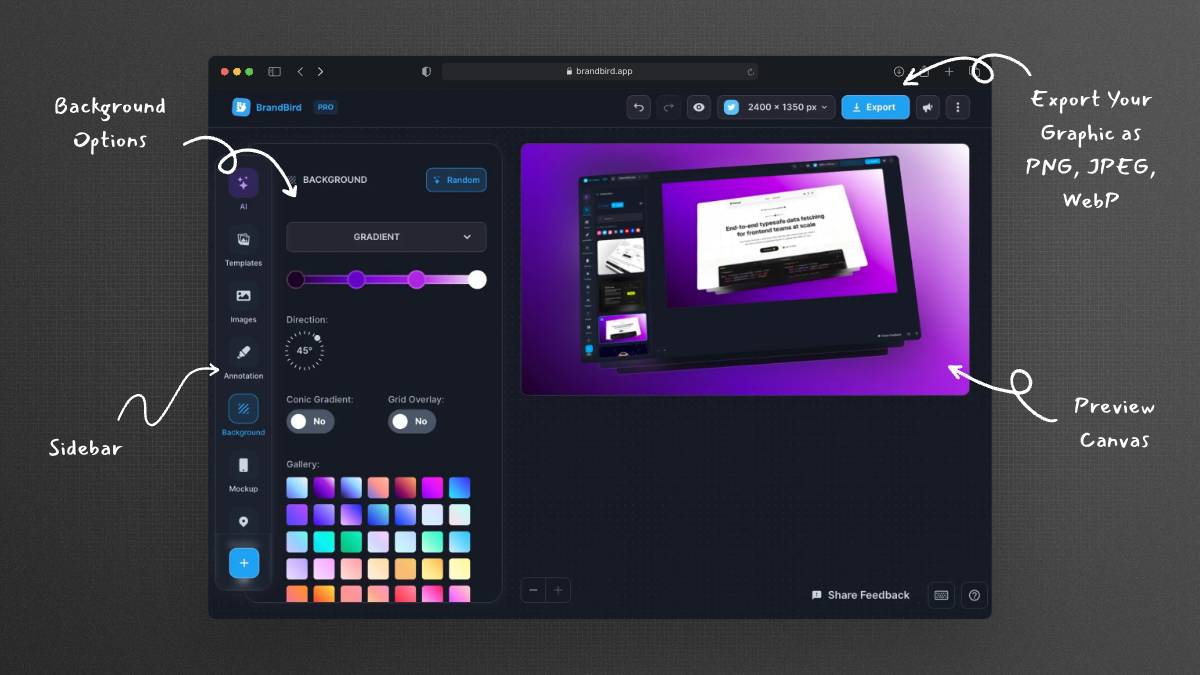
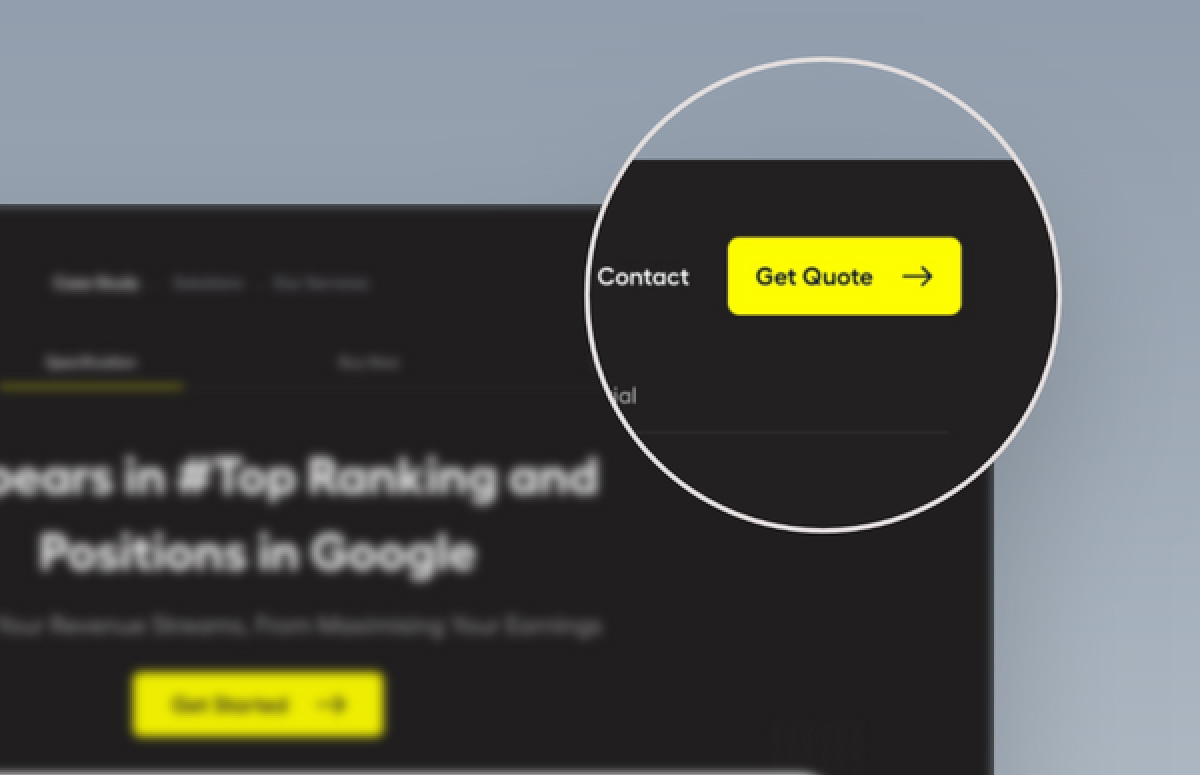
Annotation and highlight graphics are enhanced screenshots with visual elements like arrows, callouts, zoom effects, numbered steps, and spotlight overlays that draw attention to specific areas — making complex information easy to understand at a glance.

How can I create annotation graphics with BrandBird?

Upload your screenshot to BrandBird Studio, then use the annotation toolkit to add arrows, callout boxes, magnifier effects, numbered markers, and highlight overlays. Customize colors to match your brand, then export in your desired format.

What are the best use cases for annotation graphics?

Annotation graphics are perfect for product feature announcements, user onboarding guides, bug reports and support tickets, tutorial blog posts, documentation, changelog entries, YouTube thumbnails, and social media product showcases.

How do annotation graphics improve user understanding?

Visual annotations guide the viewer's eye directly to the important area, reducing cognitive load. Studies show visual information is processed 60,000x faster than text, making annotated screenshots far more effective than text descriptions.

Can I use the magnifier/zoom effect to highlight product features?

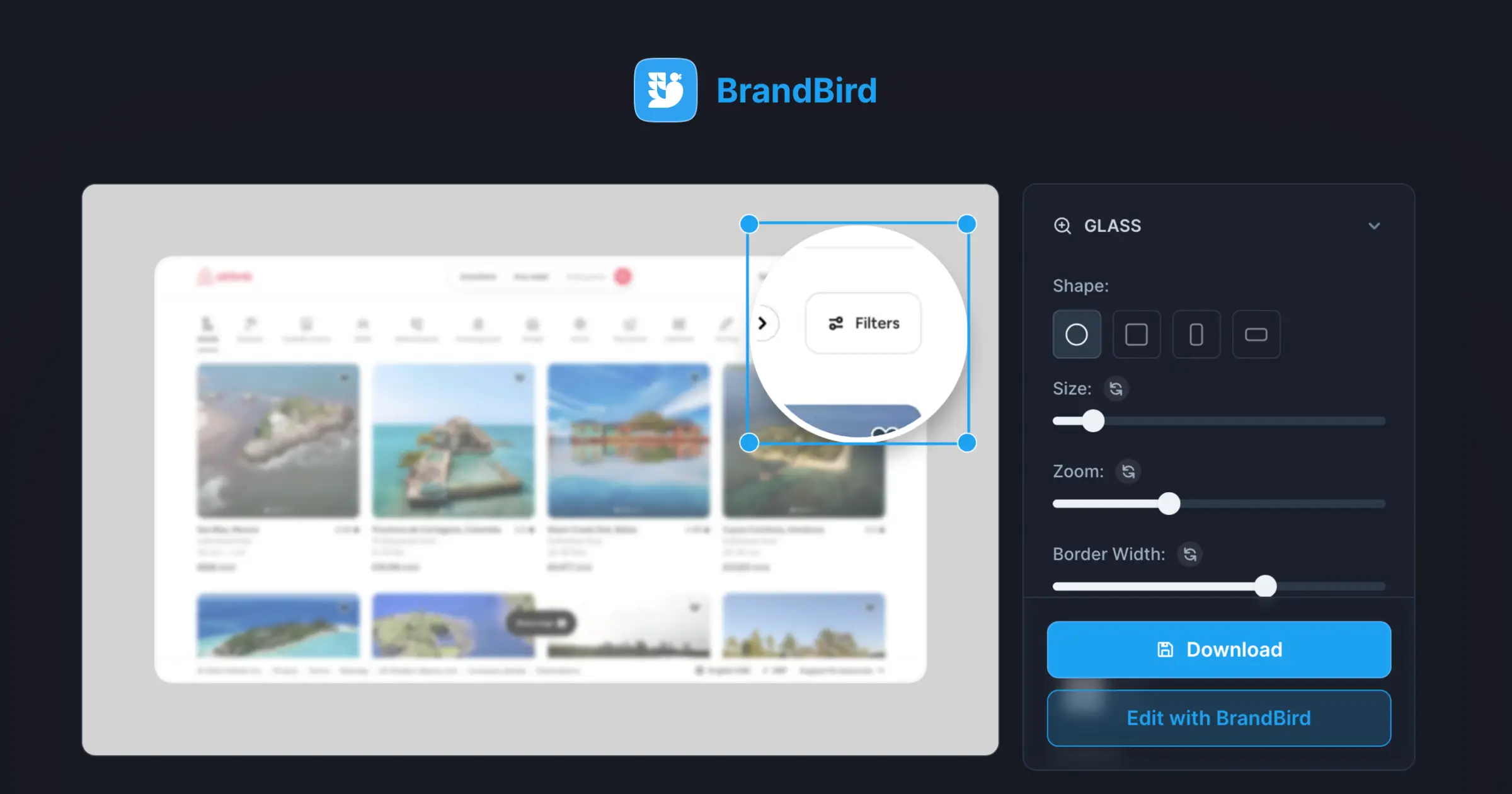
Yes. BrandBird's Highlight Product Feature tool includes a magnifier glass effect that zooms into a specific area of your screenshot. You can adjust the zoom level, size, border color, and background overlay to create professional feature callouts.

What annotation styles does BrandBird offer?

BrandBird offers arrows, text callouts, numbered step markers, magnifier zoom effects, spotlight/dim overlays, bounding boxes, and freeform highlights — all customizable with your brand colors for a consistent, professional look.

How do annotated screenshots help reduce support tickets?

Annotated screenshots in your help docs, knowledge base, and onboarding flows visually guide users through processes, making instructions crystal-clear. This proactive visual communication dramatically reduces confusion and the need for support inquiries.

Can I export annotated screenshots for different platforms?

Yes. BrandBird lets you export annotated graphics in multiple formats (PNG, JPEG, WebP) and dimensions. Use social media presets for Twitter, LinkedIn, or Instagram, or set custom dimensions for your documentation or blog.

Better Screenshots Mockups
With a Simple Design Tool.

I don't know when it happened but Brandbird is now my all-in-one SaaS & social media design tool.

Wilson

Founder Senja.io